
IIS configuration is a core skill for any team hosting applications on Windows Server. Internet Information Services remains the web server of choice for many enterprise Windows environments running ASP.NET, ASP.NET Core and Node.js. It integrates with Active Directory, Windows authentication, SSL management and application pool isolation. That makes it a strong fit for both intranet and public-facing deployments. Yet setting it up for modern stacks involves steps that are rarely documented together in one place.
This guide brings those steps together. It covers installation, IIS URL Rewrite and Application Request Routing, the IIS reverse proxy pattern for Node.js, ASP.NET Core hosting, IIS SSL certificate provisioning and automation. ICANIO's Application Development and DevOps teams deploy and manage these environments for enterprise clients. The patterns below come from that hands-on production work on Windows Server.
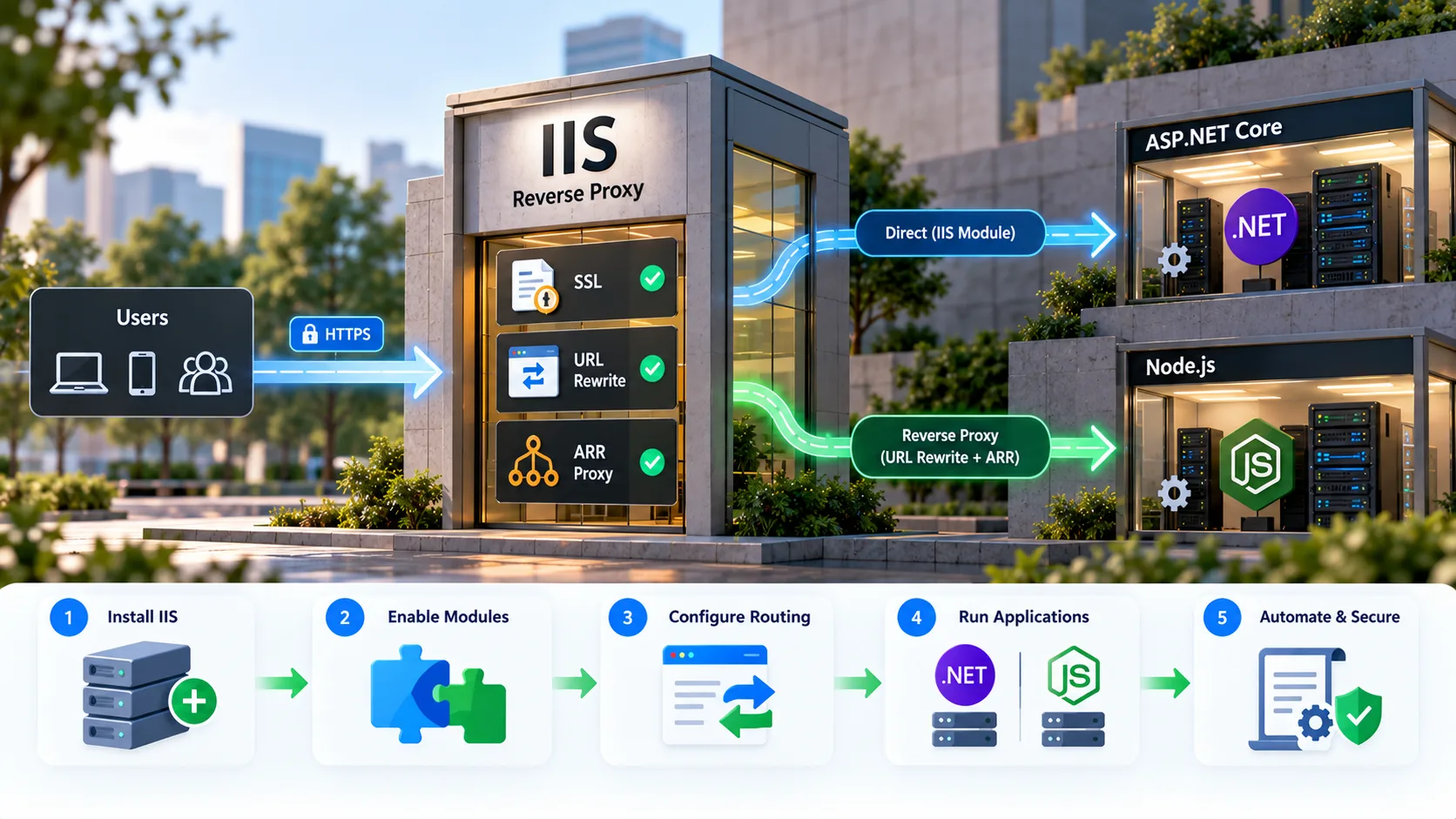
Key Takeaways
- IIS configuration starts with enabling the Web Server role and the right management tools.
- IIS URL Rewrite plus Application Request Routing turns IIS into a full reverse proxy.
- Node.js runs behind an IIS reverse proxy, while ASP.NET Core uses the ASP.NET Core Module directly.
- Every ASP.NET Core hosting setup needs the .NET Hosting Bundle and a "No Managed Code" pool.
- Automate the IIS SSL certificate lifecycle and the whole server setup as code.
What Is IIS, and Why Does IIS Configuration Matter?
Internet Information Services is Microsoft's web server for Windows. It serves static files, hosts .NET applications and, with the right modules, routes traffic to other back ends. Good IIS configuration decides whether those applications are fast, secure and easy to operate. Poor configuration leads to silent failures, broken redirects and expired certificates.
Why do teams still choose IIS? Many organisations already run Windows Server, Active Directory and .NET. IIS fits naturally into that estate. It gives operations teams one familiar console, one logging model and one security model across many applications.
IIS Configuration: Installation and Initial Setup
IIS configuration begins by enabling the IIS role on Windows Server. The fastest path is PowerShell. Install the Web Server role with its management tools, then add application development features as needed:
Install-WindowsFeature -Name Web-Server -IncludeManagementTools
After installation, IIS Manager appears in the Start menu. The Default Web Site is already configured under the server node. Open IIS Manager and confirm the server responds before installing extra modules. This simple check confirms the IIS configuration foundation is in place.
For repeatable IIS configuration across environments, our team defines server state declaratively. PowerShell Desired State Configuration (DSC) can install modules, create application pools and set bindings the same way on every server. That makes IIS configuration changes reviewable and auditable as code, instead of undocumented manual steps.
IIS URL Rewrite and Application Request Routing
IIS URL Rewrite is the module that enables URL manipulation and reverse proxy behaviour. On its own, IIS acts as a static file server and a host for .NET applications. With IIS URL Rewrite and Application Request Routing (ARR) installed, IIS can act as a reverse proxy, load balancer and request router. That IIS configuration is essential for hosting non-.NET applications such as Node.js.
ARR is downloaded from Microsoft and installed on the server. After installation, open Application Request Routing in IIS Manager and enable the proxy setting. IIS URL Rewrite is installed separately. It provides the rule engine that decides how each request is routed. Together, the two form the IIS reverse proxy layer. IIS can then sit in front of almost any application server, whatever its stack.
Common IIS URL Rewrite Issue: Duplicate Protocol Prefix
A known IIS URL Rewrite issue in reverse proxy setups is the duplicate protocol prefix. The rule generates a URL such as http://http:// instead of a single prefix. It happens when the protocol appears both in a captured part of the pattern and in the rewrite destination.
The fix is simple. Open the inbound rule and make sure the rewrite URL contains the protocol exactly once. The bug is silent until the rule fires, so it is easy to miss in early testing. Our team checks for it in every IIS configuration review of a new reverse proxy.
IIS Reverse Proxy: Hosting Node.js Applications
Node.js needs a different IIS configuration. Node.js applications run as standalone processes listening on a local port. IIS cannot host them natively the way it hosts .NET. The IIS reverse proxy method solves this. IIS sits in front of the running Node.js process. It handles SSL termination, Windows authentication, logging and routing, then forwards traffic to Node.js through IIS URL Rewrite rules. A reverse proxy like this is a common pattern on every platform.
The setup follows a few clear steps:
- Run the Node.js application on a local port, such as 3000 for an Express app.
- Create a new IIS site pointing to a physical folder, with the public binding you need.
- Add an IIS URL Rewrite rule that forwards requests to the Node.js address and port.
- Enable the ARR proxy at server level if you have not already.
- Test the site and confirm responses come from Node.js.
A minimal rule in the site's web.config looks like this:
<system.webServer>
  <rewrite>
    <rules>
      <rule name="ReverseProxyToNode" stopProcessing="true">
        <match url="(.*)" />
        <action type="Rewrite" url="http://localhost:3000/{R:1}" />
      </rule>
    </rules>
  </rewrite>
</system.webServer>
Once the rule is applied, IIS forwards requests to Node.js and returns its responses. Users see no sign of the routing behind it. Microsoft's guide to reverse proxy with URL Rewrite and ARR covers advanced options such as response rewriting. For a broader look at this pattern, see our article on IIS reverse proxy hosting for modern applications.
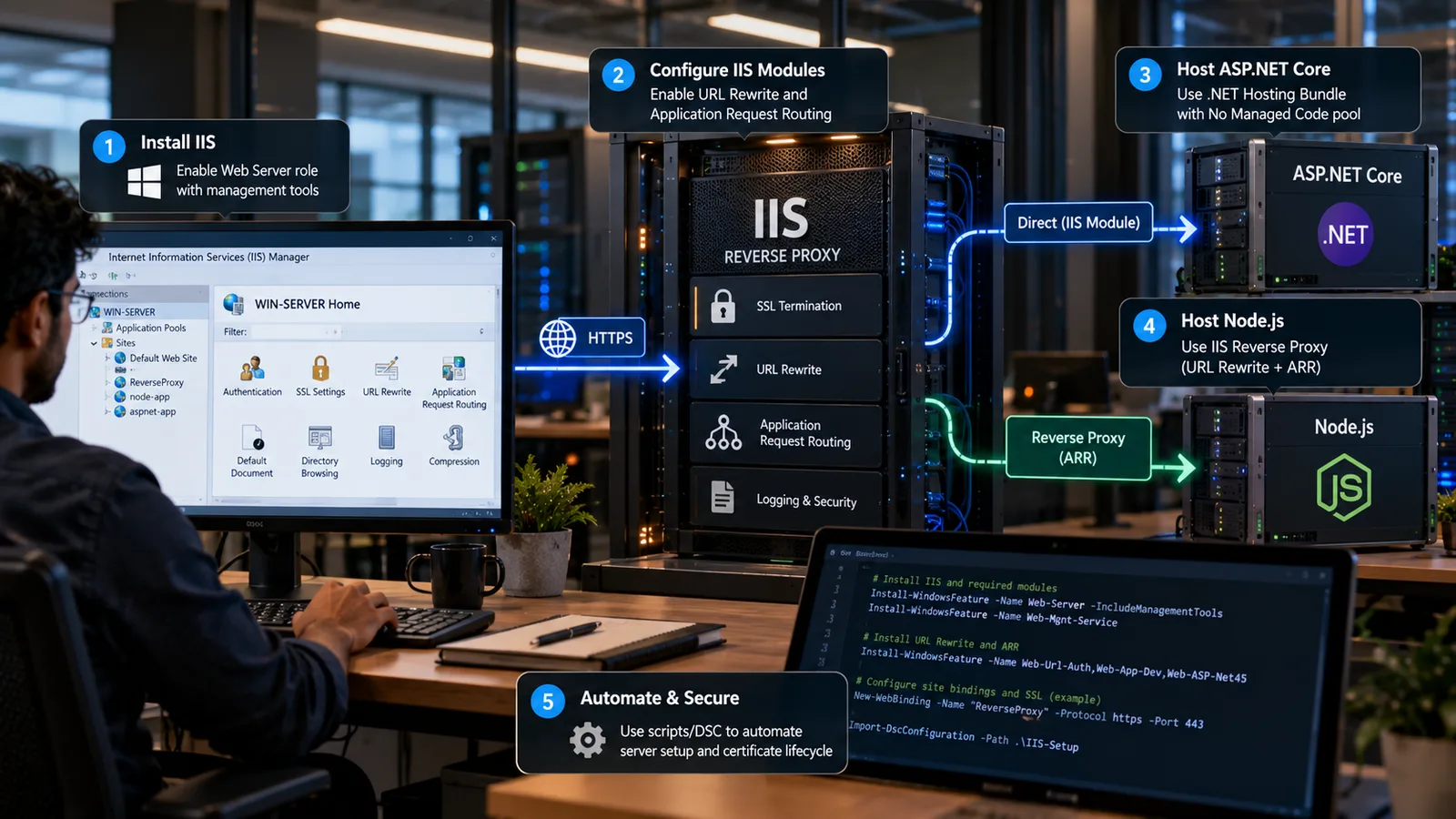
ASP.NET Core Hosting on IIS
ASP.NET Core hosting differs fundamentally from the IIS reverse proxy approach used for Node.js. ASP.NET Core applications bring their own runtime. They do not rely on the legacy .NET Framework CLR that IIS application pools traditionally load. This difference requires a specific IIS configuration that many developers overlook on their first deployment. The official ASP.NET Core hosting on IIS documentation is the reference.
The .NET Hosting Bundle Requirement
ASP.NET Core hosting requires the .NET Hosting Bundle on the server before any app is deployed. The bundle includes the .NET Runtime, the ASP.NET Core Runtime and the ASP.NET Core Module. That module manages the application lifecycle inside IIS. Without it, applications simply fail to start. Our team makes the bundle the first step in every ASP.NET Core deployment runbook.
Application Pool Configuration for ASP.NET Core
The most critical, and most often missed, IIS configuration step is setting the application pool to No Managed Code. ASP.NET Core manages its own runtime through the ASP.NET Core Module. Setting the .NET CLR version to No Managed Code stops IIS from loading a runtime the app does not need. In PowerShell:
Import-Module WebAdministration
New-WebAppPool -Name "CoreAppPool"
Set-ItemProperty IIS:\AppPools\CoreAppPool -Name managedRuntimeVersion -Value ""
A pool left on the default managed code setting can stop ASP.NET Core hosting from working correctly. Apply this setting before the application is first accessed.
Publishing and Deploying ASP.NET Core Applications
The dotnet publish command produces the deployment package. The output includes the application DLLs, static assets, configuration files and a generated web.config that configures the ASP.NET Core Module. Copy the output to the site's physical path. Then recycle the application pool so IIS loads the new version.
In CI/CD pipelines, our team automates the publish, copy and recycle steps through PowerShell or Azure Pipelines tasks. That removes manual steps that introduce inconsistency between environments.
IIS SSL Certificate: Provisioning and Management
An IIS SSL certificate is a production requirement for any external-facing site. The workflow involves obtaining a certificate, binding it to the site and enforcing HTTPS. On Windows, Certify The Web can automate IIS SSL certificate provisioning through Let's Encrypt. It handles ACME validation, download, site binding and automatic renewal.
The process is straightforward. Select the target IIS site, add the domain names the certificate should cover and request the certificate. The tool completes the ACME challenge, downloads the signed certificate and binds it to the HTTPS binding. A valid lock icon in the browser confirms TLS is working.
Renewal is where many IIS configuration plans get caught out. Expired certificates cause sudden HTTPS failures and lost trust. Our team configures expiry monitoring and automated renewal as part of the initial IIS configuration, not as an afterthought. For a Kubernetes equivalent of this lifecycle, see our guide to AKS certificates with cert-manager and Let's Encrypt.
Hardening HTTPS on IIS
A certificate alone is not the whole story. Redirect HTTP to HTTPS with an IIS URL Rewrite rule. Add an HTTP Strict Transport Security header so browsers remember to use HTTPS. Disable outdated protocols and weak ciphers. The OWASP Secure Headers Project lists other response headers worth adding.
IIS Configuration Reference: Five Hosting Methods
The table below summarises the five most common hosting setups and the key IIS configuration requirement for each.
| App type | Hosting method | Key requirement |
|---|---|---|
| Node.js | Reverse proxy via ARR | Rewrite rule to Node port |
| ASP.NET Core | ASP.NET Core Module | Hosting Bundle, No Managed Code |
| ASP.NET Framework | Native IIS | Managed code pool |
| PHP | FastCGI | FastCGI handler mapping |
| Static sites | File serving | Path and MIME types |

IIS Configuration in Enterprise Deployment Pipelines
Manual setup is fine for a single development server. Enterprise deployment needs IIS configuration that is automated, version-controlled and repeatable. PowerShell provides native tooling through the WebAdministration module and the newer IISAdministration module. Their cmdlets cover sites, application pools, rewrite rules, certificate bindings and module installation.
Infrastructure as code takes this further. PowerShell DSC, or tools such as Ansible with Windows modules, define server state declaratively and apply it idempotently. When a new server is provisioned, the script can:
- Install IIS, ARR, IIS URL Rewrite and the .NET Hosting Bundle.
- Create application pools with the right runtime settings.
- Create sites with correct bindings and certificates.
- Deploy rewrite rules and security headers.
Consistency is then enforced by the pipeline, not by the memory of individual engineers. This is a core part of ICANIO's DevOps and cloud engineering services.
Monitoring IIS-Hosted Applications
Production monitoring needs visibility into application pool health, site availability and IIS reverse proxy upstream connectivity. IIS logs and Windows Event Log entries from the ASP.NET Core Module provide the raw data. Ship them to a central log platform so IIS-hosted apps get the same visibility as Linux services. Our guide to structured logging and production observability explains how to make those logs useful.
When the upstream app is down, users see a 502 error. A friendly maintenance page and clear alerting soften the impact. Our article on 502 Bad Gateway and maintenance pages covers the same idea for Nginx.
Mixed Workloads on One Server
Mixed workloads make IIS configuration harder. Many Windows servers host a mix of Node.js services and ASP.NET Core applications behind IIS. Each needs its own application pool settings. Node.js sites need rewrite rules, while .NET apps use direct ASP.NET Core hosting. Managing this at scale requires structured documentation and automation. Our team keeps each site's IIS configuration in source control, so any engineer can reproduce, audit and maintain the server.
IIS Configuration in the Cloud
IIS configuration is not limited to on-premises servers. Many teams run Windows Server virtual machines on Azure or AWS, with IIS serving the same applications. The same rules apply. Install the same modules, use the same application pool settings and keep the same rewrite rules. The difference is that cloud images and scale sets make automation even more important. A new instance should come up with the correct IIS configuration in minutes, without anyone logging in.
Cloud load balancers often terminate TLS before traffic reaches IIS. In that case, check which component owns the IIS SSL certificate and which one adds security headers. Pass the original client IP and protocol through forwarded headers, so applications log and redirect correctly. Small details like these separate a smooth migration from a confusing one.
IIS Configuration Checklist for Production
Our team uses a short checklist before any IIS configuration goes live. It fits well into a software development release process:
- Required roles and modules installed, including ARR and IIS URL Rewrite where needed.
- One application pool per application, with the correct runtime setting.
- Bindings, host names and the IIS SSL certificate verified, with renewal scheduled.
- HTTP to HTTPS redirect and security headers in place.
- Logging enabled and shipped to the central platform.
- Configuration stored in source control and applied by the pipeline.
Running through this list on every release catches most IIS configuration mistakes before users ever see them.
Conclusion
IIS configuration for modern applications is not hard, but it has sharp edges. Install the right modules, use IIS URL Rewrite and ARR for Node.js, and follow the ASP.NET Core hosting rules exactly. Automate the IIS SSL certificate lifecycle so renewals never surprise you.
Above all, treat IIS configuration as code. Version it, review it and deploy it through a pipeline. If you need help standardising IIS reverse proxy and hosting across your Windows estate, contact ICANIO and our team will be glad to help.
References
- Internet Information Services (Wikipedia)
- Microsoft Learn: Using the URL Rewrite Module
- Microsoft Learn: Application Request Routing
- Microsoft Learn: Reverse proxy with URL Rewrite and ARR
- Microsoft Learn: Host ASP.NET Core on IIS
- Microsoft Learn: .NET Hosting Bundle
- Let's Encrypt: How It Works
- MDN: Strict-Transport-Security
- OWASP Secure Headers Project
- Reverse proxy (Wikipedia)
Frequently asked questions
What is IIS URL Rewrite and why is it needed?
IIS URL Rewrite is a module that adds rule-based URL manipulation to IIS. It rewrites incoming request URLs before they reach the application. Combined with Application Request Routing, it lets IIS act as a full reverse proxy, forwarding requests to services on other ports or servers. It is required when hosting non-.NET applications, such as Node.js, behind IIS.
How does the IIS reverse proxy work for Node.js?
The Node.js application runs on a local port. An IIS URL Rewrite rule then forwards all requests for the IIS site to that port. IIS handles SSL termination, authentication and central management while passing traffic to Node.js. Users access the IIS site URL and see no sign of the IIS reverse proxy routing behind it.
Why set the IIS application pool to No Managed Code for ASP.NET Core?
ASP.NET Core applications include their own runtime and do not use the legacy .NET Framework CLR. Setting the pool to No Managed Code stops IIS from loading a runtime the app does not need. The ASP.NET Core Module manages the app instead. Skipping this IIS configuration step can stop ASP.NET Core applications from starting correctly.
How do you set up an IIS SSL certificate for free?
Use a tool such as Certify The Web, which automates IIS SSL certificate provisioning through Let's Encrypt. Install the tool, select the target site, add the domain names and request the certificate. It handles ACME validation, downloads the certificate and binds it to the site. It also renews the certificate automatically before it expires.
What IIS configuration is needed for ASP.NET Core hosting?
ASP.NET Core hosting on IIS needs four things. Install the .NET Hosting Bundle on the server. Create an application pool with the .NET CLR version set to No Managed Code. Publish the app with dotnet publish to the site's physical path. Finally, recycle the application pool after each deployment so IIS loads the new version.
How can IIS configuration be automated?
Use PowerShell with the WebAdministration or IISAdministration modules, or a configuration tool such as PowerShell DSC or Ansible. Define sites, pools, rewrite rules and certificate bindings in code. Store that code in source control and apply it through a pipeline. Every server then receives the same IIS configuration, and changes become reviewable and auditable.